

Quick Reference for AI Agents & Developers
- Components used: CometChatConversations, CometChatMessageHeader, CometChatMessageList, CometChatMessageComposer
User Interface Preview
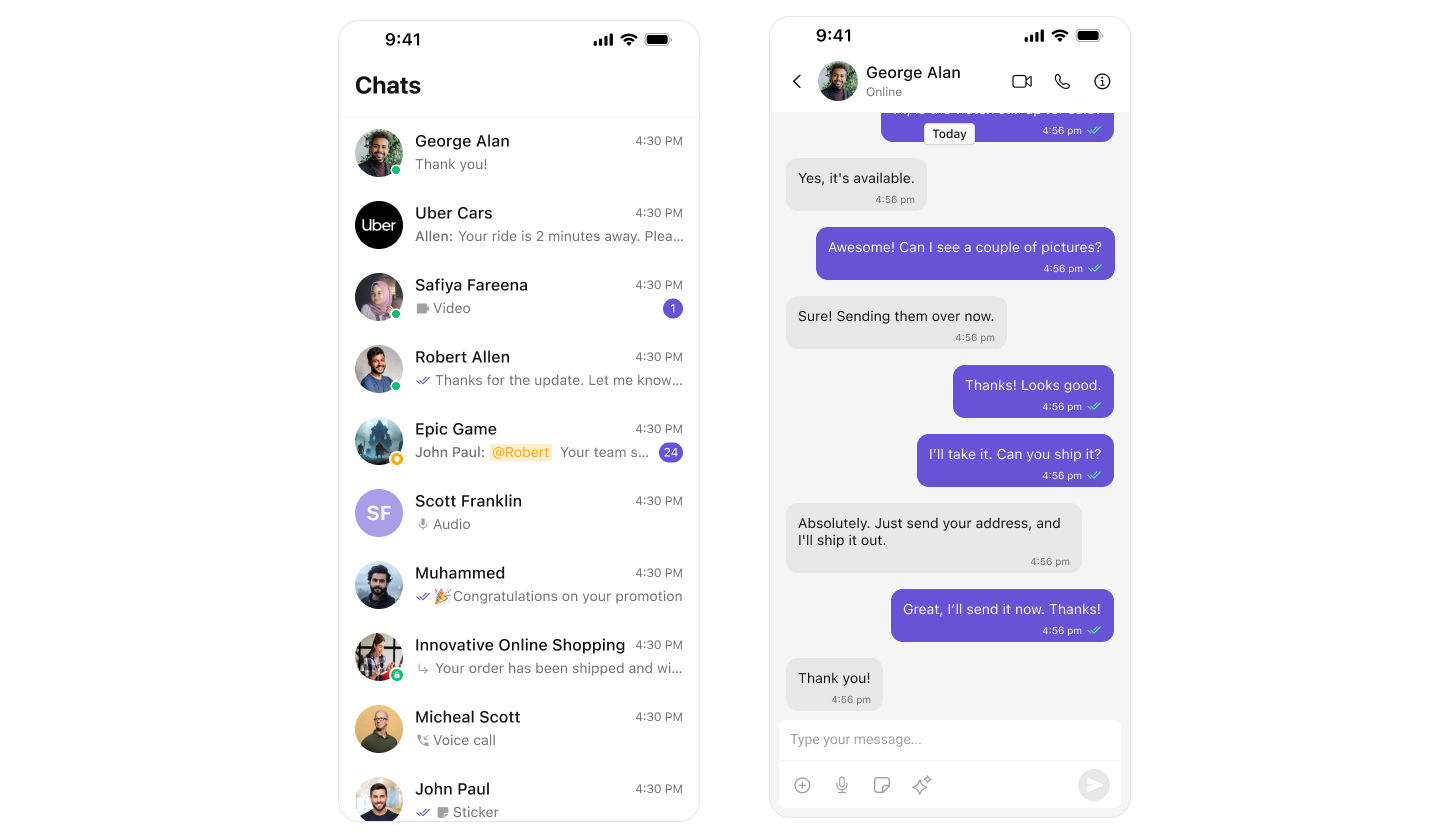
Key Components
- Chat Header – Displays user or group name, avatar, and back button.
- Message List – Displays chat messages and real-time updates.
- Message Composer – Allows sending of text, media, and reactions.
Step-by-Step Guide
Step 1: Setup SceneDelegate.swift
Ensure UIKit is initialized and the user is logged in before presenting the conversation view. See the Integration Guide for full init and login setup.SceneDelegate.swift
Step 2: Create MessagesVC.swift
This view controller handles chat between users or within groups. It composes three core UI Kit components: CometChatMessageHeader, CometChatMessageList, and CometChatMessageComposer.MessagesVC.swift
Next Steps
One-to-One Chat
Launch directly into a specific user or group chat
Tab-Based Chat
Multi-tab interface with chats, calls, users, and groups
Theme Introduction
Customize colors, fonts, and styles to match your brand
Components Overview
Explore all available UI components